Nano Banana 2.1 is now available on PaperBanana for Basic and Pro plans. In our first tests on research figures it wrote cleaner labels, edited a figure without shrinking it, and repaired a garbled label that our default editor could not. It is also slower than Nano Banana 2 and costs more credits. This post shows what we measured.
Google DeepMind released the model on October 6, 2026. Google's API documentation describes improvements in text rendering and infographic layout, which are the two things that most often go wrong in an AI-drawn paper figure. We ran it on our own figure tasks the next day.
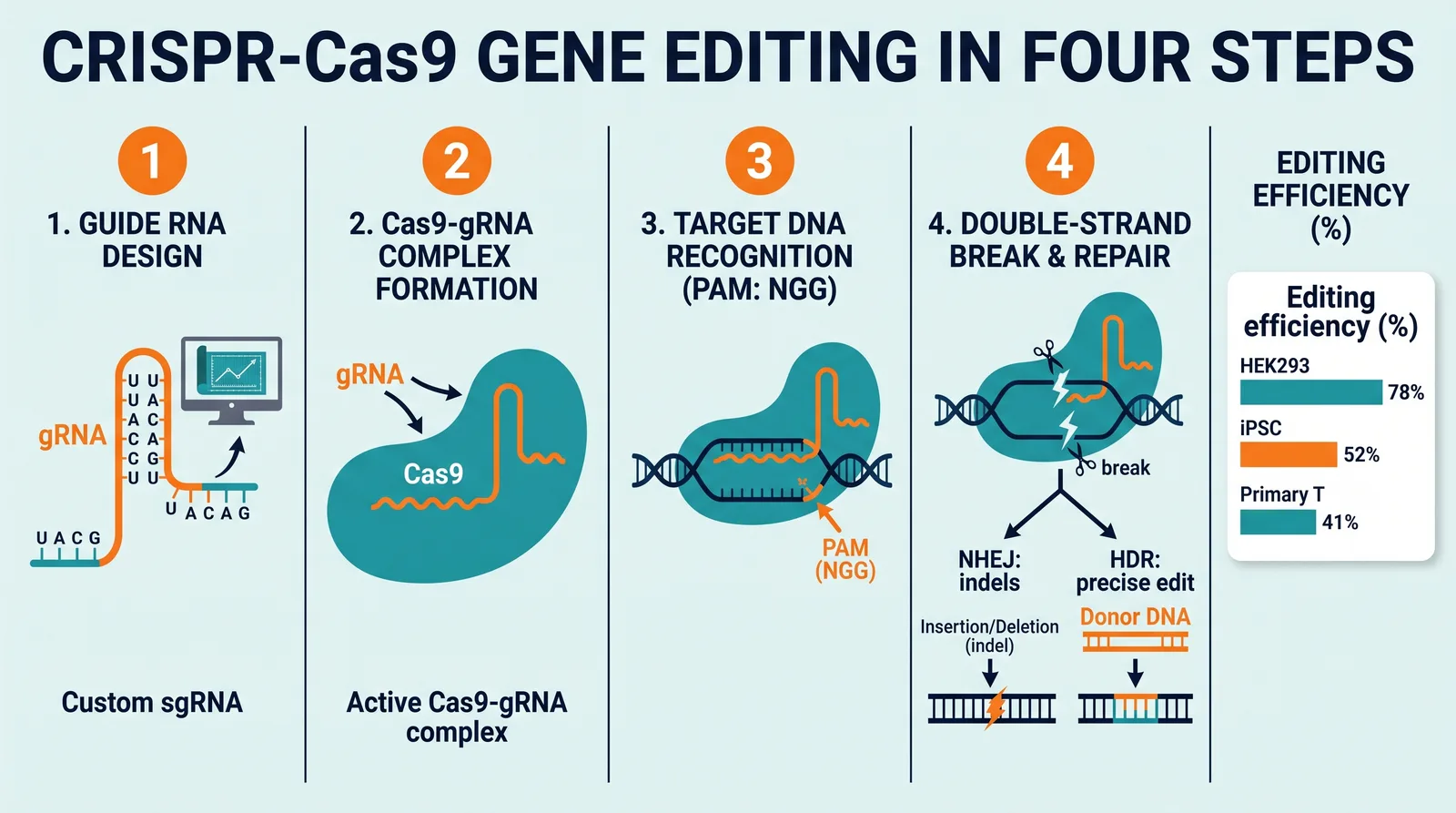
A single, unedited Nano Banana 2.1 generation at 2K. The numbers in the chart come from the prompt and are not real data.
How we tested
These are small tests, one run per setting unless noted. They show what happened on our prompts and are not a benchmark.
- Generation: the same two prompts, a method diagram and a four-step infographic, on Nano Banana 2 and Nano Banana 2.1.
- Editing: three edits on 2K figures (recolor one box, rename one label, fix one misspelled label), each run on Nano Banana 2.1, Nano Banana 2 and both quality tiers of our default editor, GPT Image 2.5.
Advantage 1: labels that are spelled correctly
Both models got the same infographic prompt. The Nano Banana 2 result contained a label that read "Target DNA secogniic recognition". The Nano Banana 2.1 result, shown at the top of this post, had no misspelled label.
It was not perfect. Look at the right side of the cover image: the chart title appears twice. You still need to read every label before a figure goes into a paper, and that does not change with any model.
Advantage 2: edits that fix text and keep your resolution
We then took the figure with the misspelled label and asked each editor to fix only that label.
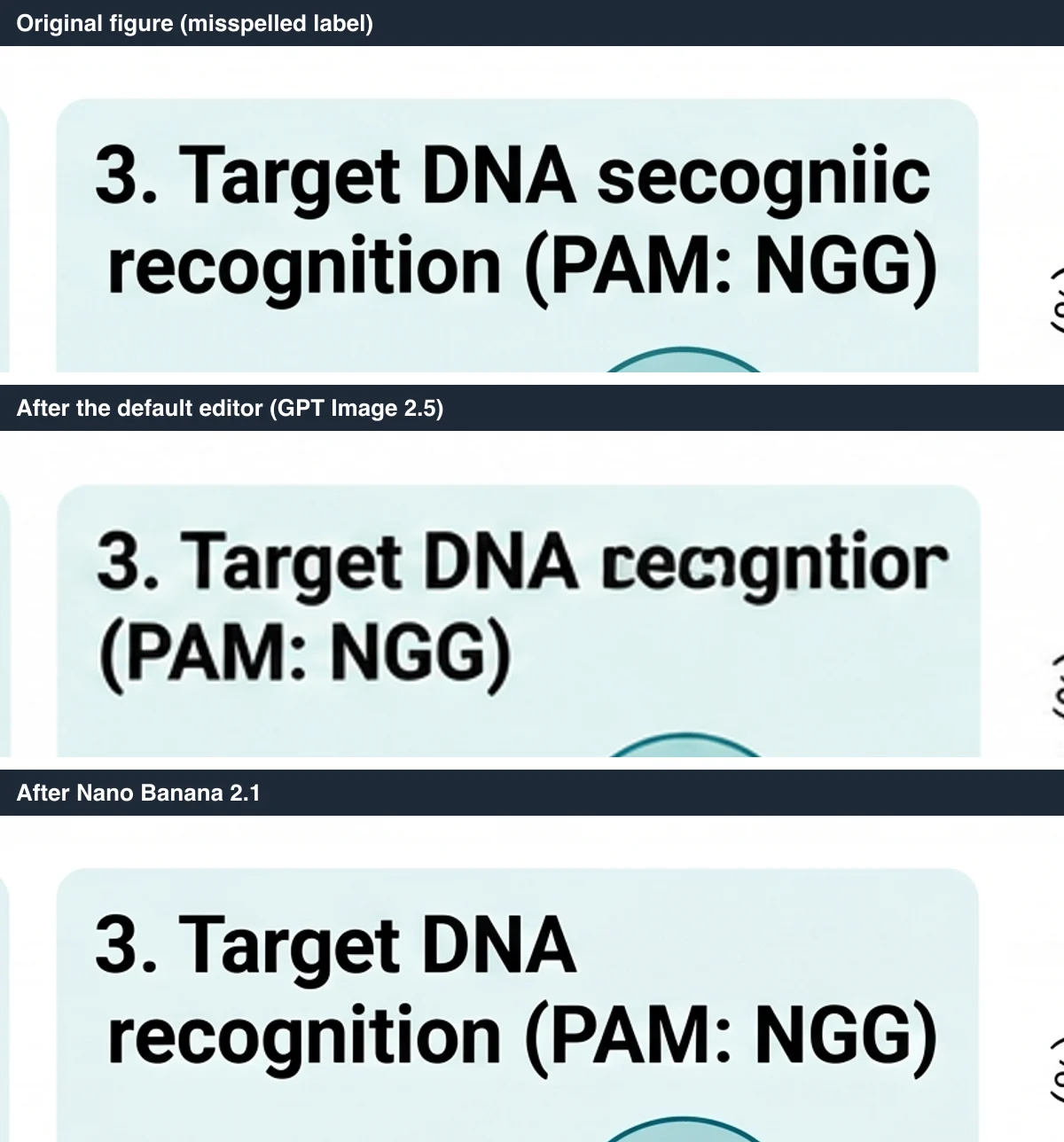
The same region of the figure before the edit, after the default editor, and after Nano Banana 2.1.
The table covers all three edits.
| Default editor (GPT Image 2.5) | Nano Banana 2.1 | |
|---|---|---|
| Misspelled label | Still garbled, in both Standard and HD | Fixed in all three runs |
| Output size for a 2752 × 1536 figure | 1376 × 768 | 2752 × 1536 |
| Pixels changed outside the marked area | 2–5% | 0.6–0.8% |
| Time per edit | 21–27 s | 19–29 s |
The size row matters most for print. Our default editor returns large figures at a reduced size. Nano Banana 2.1 returned the figure at the size we uploaded, so a 2K figure stays a 2K figure after the edit.
Nano Banana 2 also fixed the label and also kept the size in this test. On these three edits we did not see a difference between Nano Banana 2 and 2.1. The clear gap was between Nano Banana 2.1 and the default editor.
Advantage 3: resolution up to 4K
Nano Banana 2.1 generates at 1K, 2K and 4K. The 4K method diagram in our test came back at 5504 × 3072 pixels, which is enough for a full-width figure at print resolution.
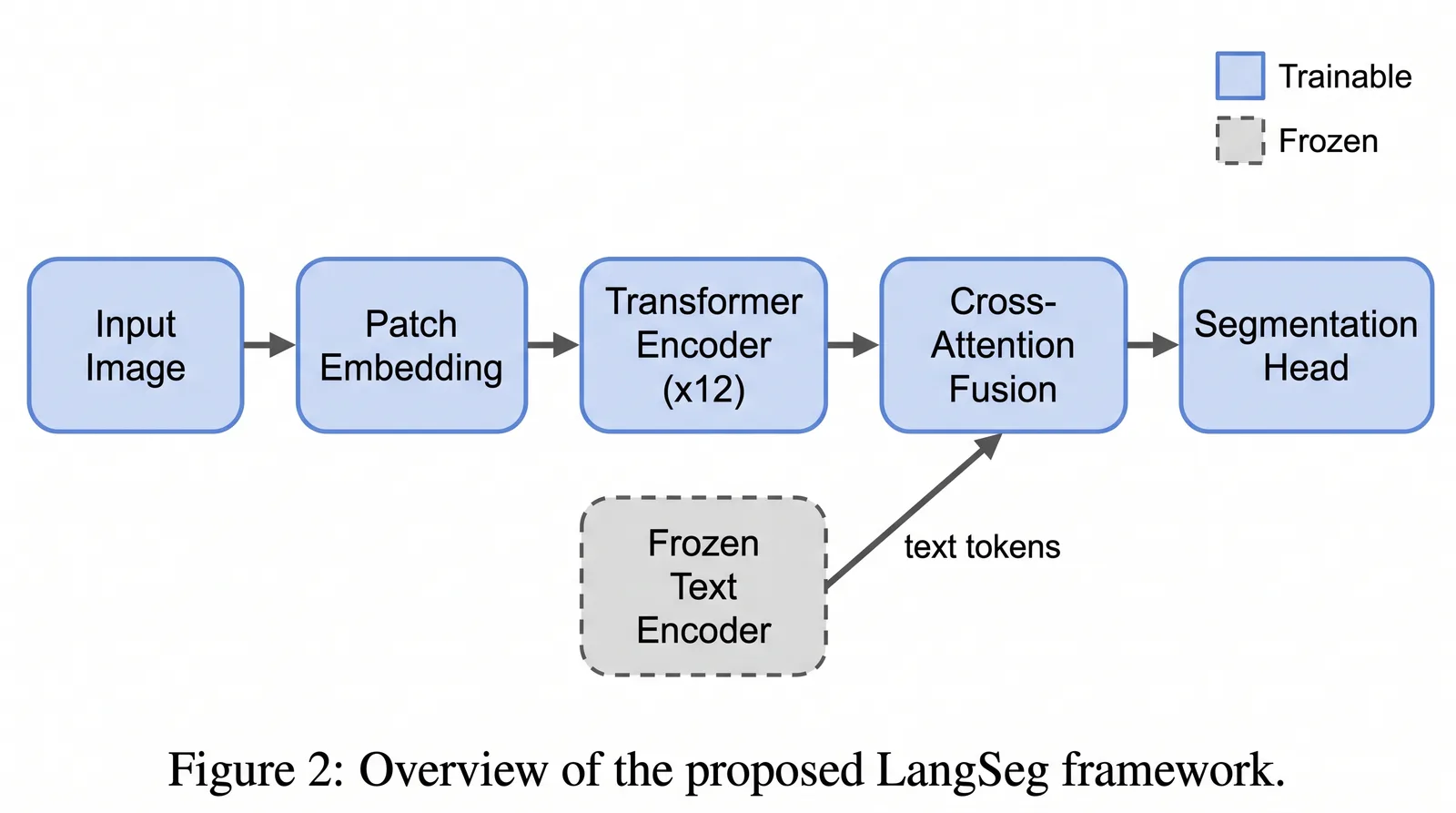
A method diagram from one Nano Banana 2.1 generation. Every box label, the legend and the caption are spelled as written in the prompt.
Where it is not better
- It is slower. The model reasons before it draws. Our generations took 18–46 seconds, against 14–18 seconds for Nano Banana 2 on the same prompts. The dense infographic was the slow one.
- It costs more credits. See the table below. For quick drafts, Nano Banana 2 Lite or the default model is the cheaper choice.
- It still makes mistakes. The duplicated chart title above is one example. Check labels, arrow directions and numbers every time.
What it costs
Nano Banana 2.1 is available on the Basic and Pro plans. On other plans it appears in the model list with a lock.
| List price | Basic | Pro | |
|---|---|---|---|
| Standard, 1K / 2K / 4K | 10 / 20 / 40 | 10 / 10 / 20 | 10 / 10 / 10 |
| Advanced, 1K / 2K / 4K | 13 / 26 / 52 | 13 / 13 / 26 | 13 / 13 / 13 |
| Edit an image | 15 | 15 | 15 |
Failed generations and failed edits are not charged.
How to use it
- Standard: open the generator and pick Nano Banana 2.1 in the Model list.
- Advanced: pick it as the image model. The planning and styling steps run as before, and Nano Banana 2.1 draws the final figure.
- Edit an image: open Edit an image, upload a figure, mark the area to change, and choose Nano Banana 2.1 under Model.
On Basic and Pro it is already selected by default in all three places.
Which model should you pick?
| Your task | Our suggestion |
|---|---|
| Fast drafts while the layout is still changing | Nano Banana 2 Lite or the default model |
| A final figure with many labels | Nano Banana 2.1 |
| Fixing or renaming text in an existing figure | Nano Banana 2.1 in Edit an image |
| Editing a 2K or 4K figure you need to keep at full size | Nano Banana 2.1 in Edit an image |
| A plot of measured data | A plotting tool. No image model should draw your data points. |
If you are on the free or Hobby plan, the pricing page shows what Basic and Pro include.