Need more monthly credits or access to features included in a higher tier? If your current subscription is eligible, you can upgrade directly from your PaperBanana billing settings and pay only the prorated difference for the remaining time in your current billing period.
This guide walks through the upgrade flow.
Before You Start
Subscription upgrades are available for active Stripe subscriptions. If your subscription was paid through PayPal, or if your plan is canceled, expired, paused, or pending cancellation, the self-service upgrade button may not appear. In that case, contact support and we will help you move to the right plan.
Opening the upgrade page does not change your plan. Your subscription is updated only after you confirm the upgrade and the payment succeeds.
Step 1: Open Billing Settings
Sign in to PaperBanana, then go to Settings > Billing.
You can start an upgrade from either place:
- The Current Plan card, by clicking Upgrade Plan
- The Subscriptions History table, by opening the action menu for your active subscription and choosing Upgrade Plan
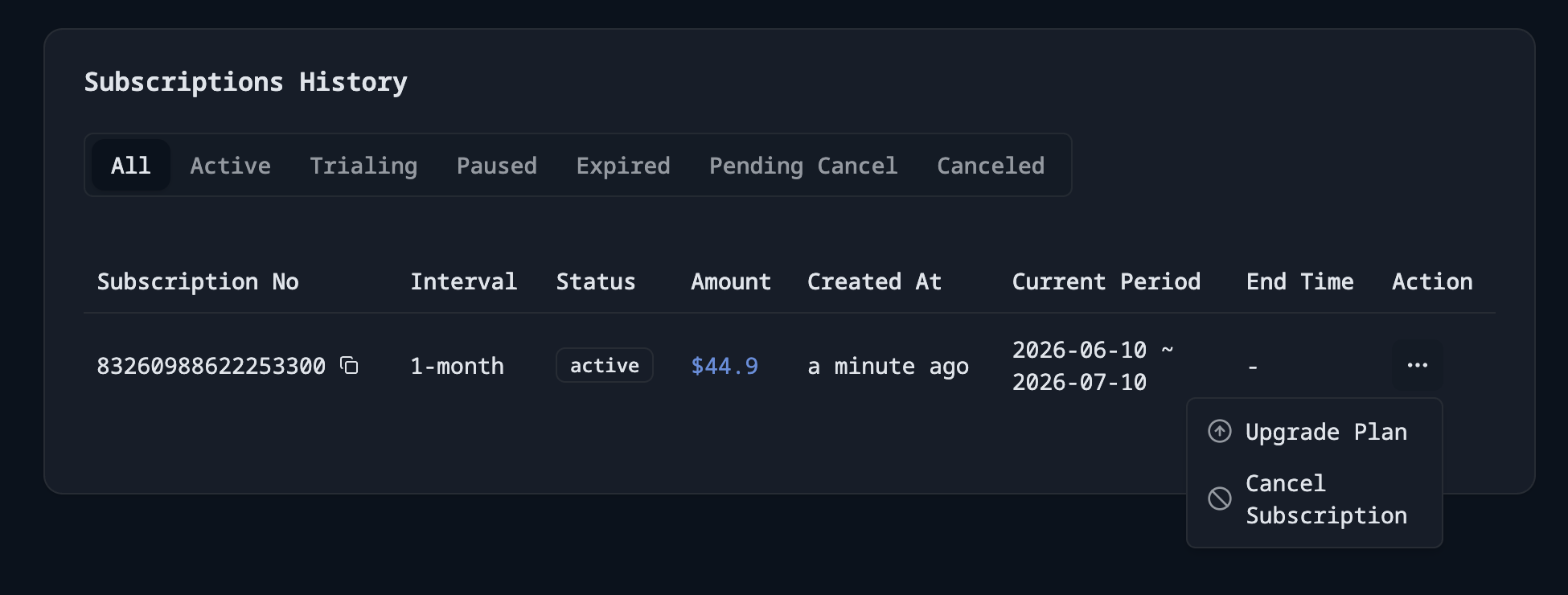
If you do not see Upgrade Plan, your current subscription may not be eligible for self-service upgrade. Check that the subscription is active and was paid through Stripe.
Step 2: Choose a Higher Plan
On the upgrade page, select the higher plan you want to move to.
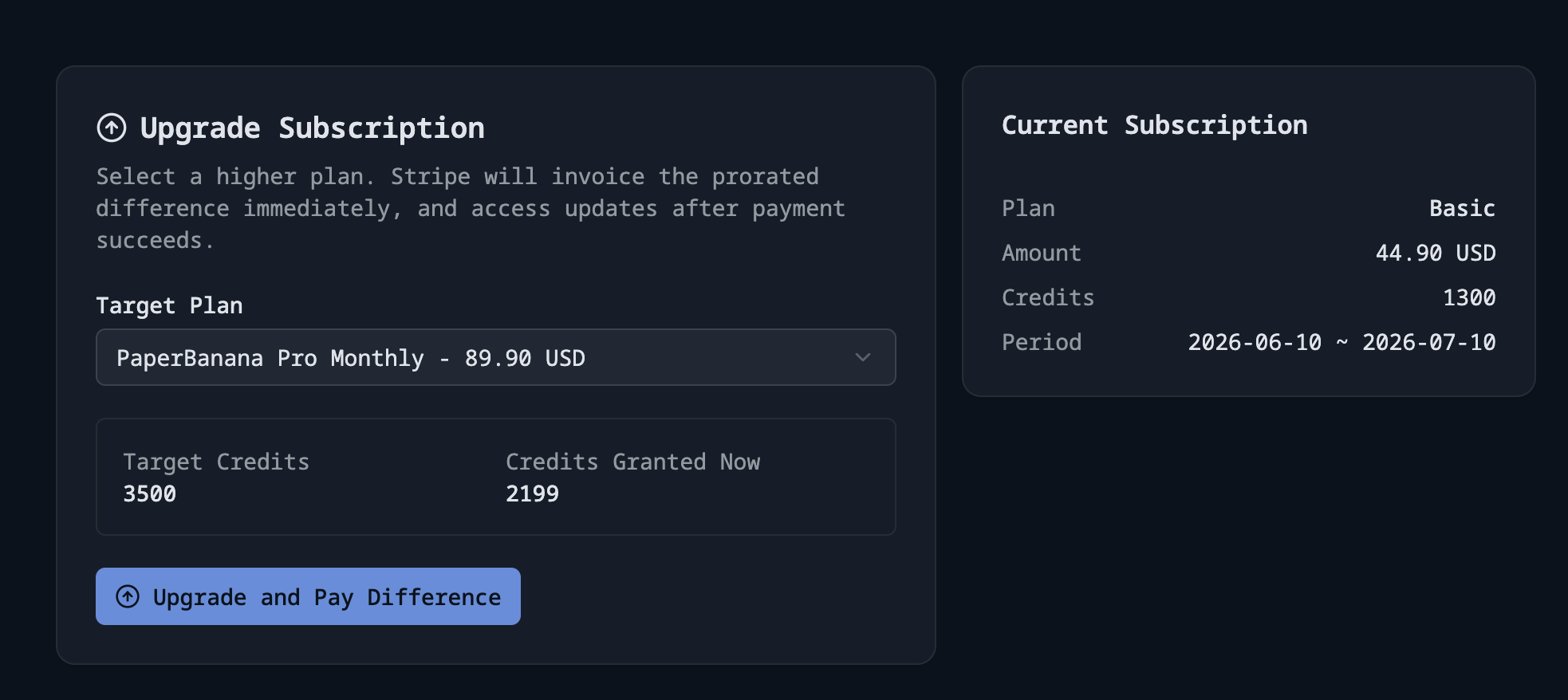
The page shows:
- Target Plan: the plan you are upgrading to
- Target Credits: the total credits included in the new plan
- Credits Granted Now: the additional credits added immediately after payment succeeds
- Current Subscription: your current plan, amount, credits, and billing period
Stripe calculates the prorated charge based on the remaining time in your current billing period. For example, if you upgrade halfway through a monthly plan, you pay only the difference for the remaining half of the month.
Step 3: Review the Difference
After selecting the target plan, review the upgrade details carefully.
The upgrade changes two things:
- Your subscription plan changes to the selected higher tier.
- Your available credits increase after the payment succeeds.
The credits shown as Credits Granted Now are the immediate additional credits you receive for the current billing period. Future renewals will follow the credit allowance of the new plan.
Step 4: Confirm the Upgrade
Click Upgrade and Pay Difference when you are ready.
PaperBanana will show a confirmation dialog before sending the upgrade to Stripe.
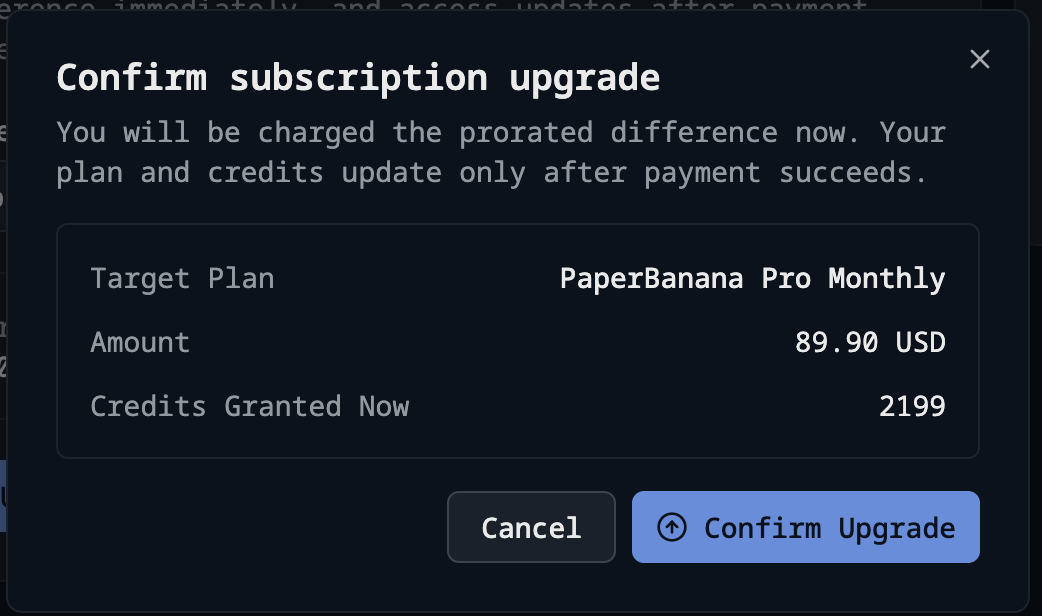
Review the target plan, amount, and credits. Then choose:
- Confirm Upgrade to continue and pay the prorated difference
- Cancel if you are not ready to upgrade
Your plan and credits update only after the payment succeeds.
Step 5: Check Your Updated Plan
After payment succeeds, return to Settings > Billing. Your current plan should show the upgraded tier, and your credit balance should include the newly granted credits.
If the payment succeeds but the page still shows the old plan, refresh the page after a few seconds. Stripe payment events can take a short moment to finish syncing.
Troubleshooting
I do not see the Upgrade Plan button
Self-service upgrades are available only for eligible active Stripe subscriptions. You may not see the button if:
- Your subscription was paid through PayPal
- Your subscription is canceled, expired, paused, or pending cancellation
- You are already on the highest available plan for your billing interval
- No higher plan is currently available in the product catalog
I selected a plan but changed my mind
Use Cancel in the confirmation dialog, or leave the page before confirming. Visiting the upgrade page alone does not upgrade your subscription.
I paid, but the plan did not update
Refresh the billing page after a few seconds. If the plan still has not changed, contact support with your account email and subscription number so we can check the Stripe payment event.
Need Help?
If your account uses PayPal, or you need help choosing the right tier, contact us at support@paper-banana.org. Include your account email and the plan you want to upgrade to, and we will guide you through the next step.